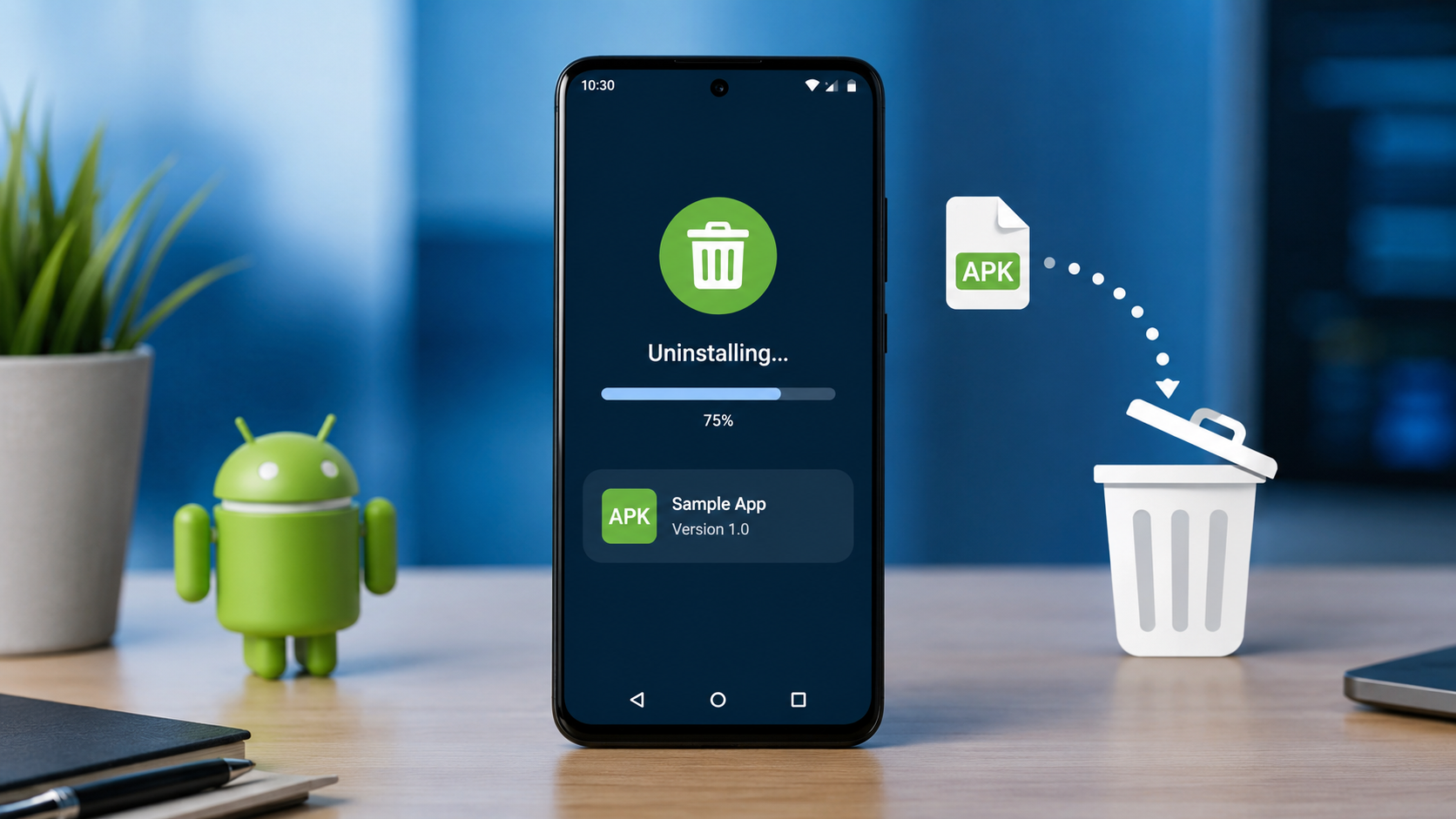
How to Uninstall an APK App Completely on Android
Installed an APK manually and now want to remove it completely? Simply tapping Uninstall usually removes the app itself, but it may not remove every file you downloaded or created outside Android’s app-specific storage. The good news is that Android automatically removes files stored in the app’s own private storage when the app is uninstalled. Files saved in shared locations—such as Downloads, Pictures, Movies, or folders created by the app—can remain and may need to be deleted separately.
This guide explains how to uninstall an APK app completely on Android, how to remove leftover files safely, what happens to app data, and what to do if the normal uninstall option doesn’t work.
What Happens When You Uninstall an APK App?
An APK is simply the Android application package used to install an app. Whether you installed an application from Google Play, downloaded an APK from a website, or transferred it from another device, Android treats the installed application as an app on the device.
When you uninstall it, Android removes the application and its app-specific storage. Android’s documentation confirms that files stored in an app’s app-specific directories are removed when the app is uninstalled.
However, uninstalling an app doesn’t necessarily mean every related file on your phone disappears.
For example, an app may have saved:
- The original APK in your Downloads folder
- Photos or videos in shared storage
- Documents or exported files
- Downloads created by the app
- A folder in shared storage
- Files you deliberately saved outside the app’s private storage
Those files can remain because they’re considered user-accessible or shared files rather than private app data.
How to Uninstall an APK App Completely
For most Android phones, the safest approach is:
- Back up anything you want to keep.
- Uninstall the application.
- Check its storage-related folders.
- Delete the original APK if you no longer need it.
- Remove leftover folders or downloads that clearly belong to the app.
- Restart the phone if the app was behaving unusually.
You don’t normally need a third-party “APK cleaner” to do this.
1. Uninstall the APK App From Android Settings
The exact menu names can vary between Android manufacturers, but the general process is similar.
Step 1: Open Settings
Open your Android phone’s Settings app.
Step 2: Open Apps
Look for an option such as:
Settings → Apps → See all apps
On Samsung Galaxy devices, for example, you can open Settings → Apps and select the application you want to manage.
Step 3: Find the APK App
Search for the application you installed from the APK.
Select it to open its App info page.
Step 4: Tap Uninstall
Tap Uninstall and confirm the action.
Once Android completes the process, the installed application should no longer be available as an installed app.
Google also provides an alternative uninstall method through the Play Store:
Google Play Store → Profile → Manage apps & devices → Manage → Select app → Uninstall.
For a manually installed APK, however, using Android’s Settings app is often the most straightforward option.
2. Should You Clear App Data Before Uninstalling?
Usually, you don’t have to clear app data before uninstalling.
Android removes app-specific files when the application is uninstalled.
However, clearing data first can be useful if you’re troubleshooting an application or want to reset it before removing it.
The option may appear under:
Settings → Apps → [App Name] → Storage → Clear data
Be careful: clearing app data deletes information stored by that application, which can include settings, accounts, databases, and other saved app information. Samsung explicitly warns that clearing app data resets the application and removes its stored personal settings and data.
Clear Cache vs. Clear Data
These two options aren’t the same.
| Option | What it does |
|---|---|
| Clear cache | Removes temporary cached files |
| Clear data/storage | Resets the app and removes its stored app data |
| Uninstall | Removes the installed application |
| Delete downloaded APK | Removes the installation package you downloaded separately |
Google explains that clearing cache removes temporary data, while clearing storage permanently deletes the app’s stored data.
3. Delete the Original APK File
This is one of the most commonly overlooked steps.
If you installed an app from a website, the APK you downloaded may still be sitting in your Downloads folder.
Open your file manager and check:
Internal storage → Download
Look for a file ending in:
.apk
For example:
example-app.apk
If you’ve already uninstalled the application and don’t need the installation file anymore, you can delete the APK.
Deleting the APK does not uninstall an already-installed application. It only removes the downloaded installation package.
4. Check for Leftover App Folders
Some applications create folders in shared storage.
After uninstalling the application, open your phone’s file manager and look for folders clearly associated with the app.
Potential locations include:
- Download
- Documents
- Pictures
- Movies
- Music
- Android-related shared folders
- A folder named after the application or developer
Be conservative here.
Don’t delete an unfamiliar folder simply because its name looks technical.
Android uses different storage areas for app-specific and shared files. App-specific files are automatically removed during uninstall, while shared files can remain because they may contain content intended for the user to keep.
A Simple Rule for Leftover Files
Delete a leftover file only when you can confidently identify it as belonging to the uninstalled application.
For example, if you intentionally downloaded a video using an app and the video is now in your normal Movies folder, uninstalling the app shouldn’t automatically delete that video.
If you still want the video, keep it.
If you don’t need it, delete it separately.
5. Check Your Downloads Folder After Uninstalling
If you regularly install APKs manually, your Downloads folder can become crowded with old installation files.
After uninstalling an APK app, check:
File Manager → Downloads
You may find:
- Old APK files
- Duplicate APK versions
- ZIP files
- App-related documents
- Installation packages you no longer need
Deleting unused APK files can recover storage without affecting other installed applications.
6. What If the App Doesn’t Have an Uninstall Option?
Some applications cannot be removed normally.
This can happen with:
- Preinstalled system applications
- Device-management applications
- Apps with special administrator privileges
- Manufacturer-installed software
Google notes that some apps can be disabled rather than completely uninstalled, while Samsung similarly explains that certain apps cannot be uninstalled and may instead offer a Disable option.
Check Device Administrator Access
If a third-party app refuses to uninstall, check whether it has been granted device administrator privileges.
Depending on your Android version and manufacturer, look under security or special-access settings for Device admin apps.
If the application is listed there, remove its administrator permission first, then try uninstalling it again.
Don’t disable security features or administrator controls unless you understand what the application is doing.
7. What If the APK App Is Suspicious or Malicious?
If you installed an APK from an unfamiliar source and the phone is behaving strangely, take the situation more seriously.
Warning signs can include:
- Unexpected pop-ups
- Excessive advertisements
- Unusual battery drain
- Apps appearing that you didn’t install
- Unfamiliar permissions
- Browser redirects
- Unusual background activity
First, uninstall the suspicious application if Android allows it.
Then review your installed apps and permissions. If the problem continues, use your device’s built-in security tools and consider changing important passwords from a trusted device if you believe your accounts may have been exposed.
For future installations, download applications from trusted sources whenever possible.
[Internal Link: How to Check an APK File Before Installing It]
8. Do You Need a Third-Party Cleaner App?
Usually, no.
Android already handles removal of app-specific storage during uninstall.
A third-party cleaner may be useful for certain storage-management tasks, but installing another application simply to remove an application can add unnecessary complexity.
For most users, the better approach is:
Uninstall → check Downloads → check shared folders → delete only identifiable leftovers.
This is simpler and gives you more control over what gets deleted.
9. Does Uninstalling an APK Delete Everything?
No—not necessarily everything associated with the app.
Android removes the app and its app-specific storage, but files deliberately saved in shared storage can remain.
For example:
| Item | Usually removed with uninstall? |
|---|---|
| Installed application | Yes |
| App-specific internal files | Yes |
| App-specific cache | Yes |
| App-specific external files | Yes |
| Original downloaded APK | No |
| Photos saved to shared storage | No |
| Videos exported to shared storage | No |
| Documents downloaded by the user | No |
| Files manually saved elsewhere | No |
The important distinction is app-specific storage versus shared storage.
10. How to Remove an APK App and Its Leftovers Safely
If your goal is a completely clean removal, use this checklist:
Before uninstalling
- Back up photos, documents, or other files you want to keep.
- Check whether the app has important downloads.
- Make sure you know the account credentials if you may need them later.
Uninstall the app
- Open Settings.
- Go to Apps.
- Select the application.
- Tap Uninstall.
- Confirm.
After uninstalling
- Open your file manager.
- Check Downloads.
- Delete the original
.apkif you don’t need it. - Look for clearly identifiable folders created by the app.
- Delete unwanted app-generated files.
- Empty the file manager’s trash/recycle bin if your device uses one.
This gives you a cleaner result without risking unrelated personal files.
Common Mistakes to Avoid
Deleting random Android folders
Don’t remove folders just because they contain the application’s name or technical-looking files.
Some folders may contain data shared with other applications.
Assuming “Clear cache” uninstalls the app
It doesn’t.
Clearing cache only removes temporary cached data.
Assuming the APK file is the installed app
The downloaded .apk is an installation package. Deleting that file doesn’t uninstall an application that has already been installed.
Using a cleaner before checking your files
Automated cleaning can make it harder to understand what you’re deleting. If you’re trying to remove one specific APK app, manual identification is usually safer.
Forgetting important app data
Before uninstalling, check whether the application contains data you need. Cloud-synced information may be recoverable after reinstalling, but locally stored data may not be.
Frequently Asked Questions
Does uninstalling an APK remove the APK file?
No. If you downloaded the APK separately, the original installation file can remain in your Downloads folder. You can delete it manually if you no longer need it.
Does Android automatically delete app data when an app is uninstalled?
Android removes files stored in the app’s app-specific storage when the app is uninstalled.
Should I clear data before uninstalling an APK?
It’s generally not necessary. Uninstalling removes the app’s app-specific storage. Clearing data first can be useful for troubleshooting, but it also permanently removes the app’s stored data.
How do I completely remove an APK from my phone?
Uninstall the installed app through Settings, then check your Downloads folder for the original .apk and inspect shared folders for files you can confidently identify as belonging to the app.
Why is the APK still in my Downloads folder after uninstalling?
Because the downloaded APK is a separate file from the installed application. Android doesn’t need to delete your personal download simply because you uninstalled the application.
Will uninstalling an app delete my photos?
Not necessarily. Photos and other files stored in shared storage can remain after an app is uninstalled. Android’s documentation specifically distinguishes shared media and documents from app-specific storage.
Can I reinstall the APK after uninstalling it?
Yes, provided you still have the APK installation file or can obtain the application again from a trusted source. Before reinstalling an APK, verify that the source is trustworthy.
What should I do if an APK app won’t uninstall?
Check whether the app has special administrator privileges or is a system/preinstalled application. Some apps can be disabled rather than uninstalled.
Final Takeaway
The easiest way to uninstall an APK app completely on Android is not to delete random folders or install another cleaner. Start with Android’s normal uninstall process, then manually check for the original APK and any files the application saved in shared storage.
Remember the key difference: Android removes app-specific files when you uninstall an app, but files saved in shared storage may remain.
If you’re unsure about a leftover file, don’t delete it simply because its name looks related. Identify it first.