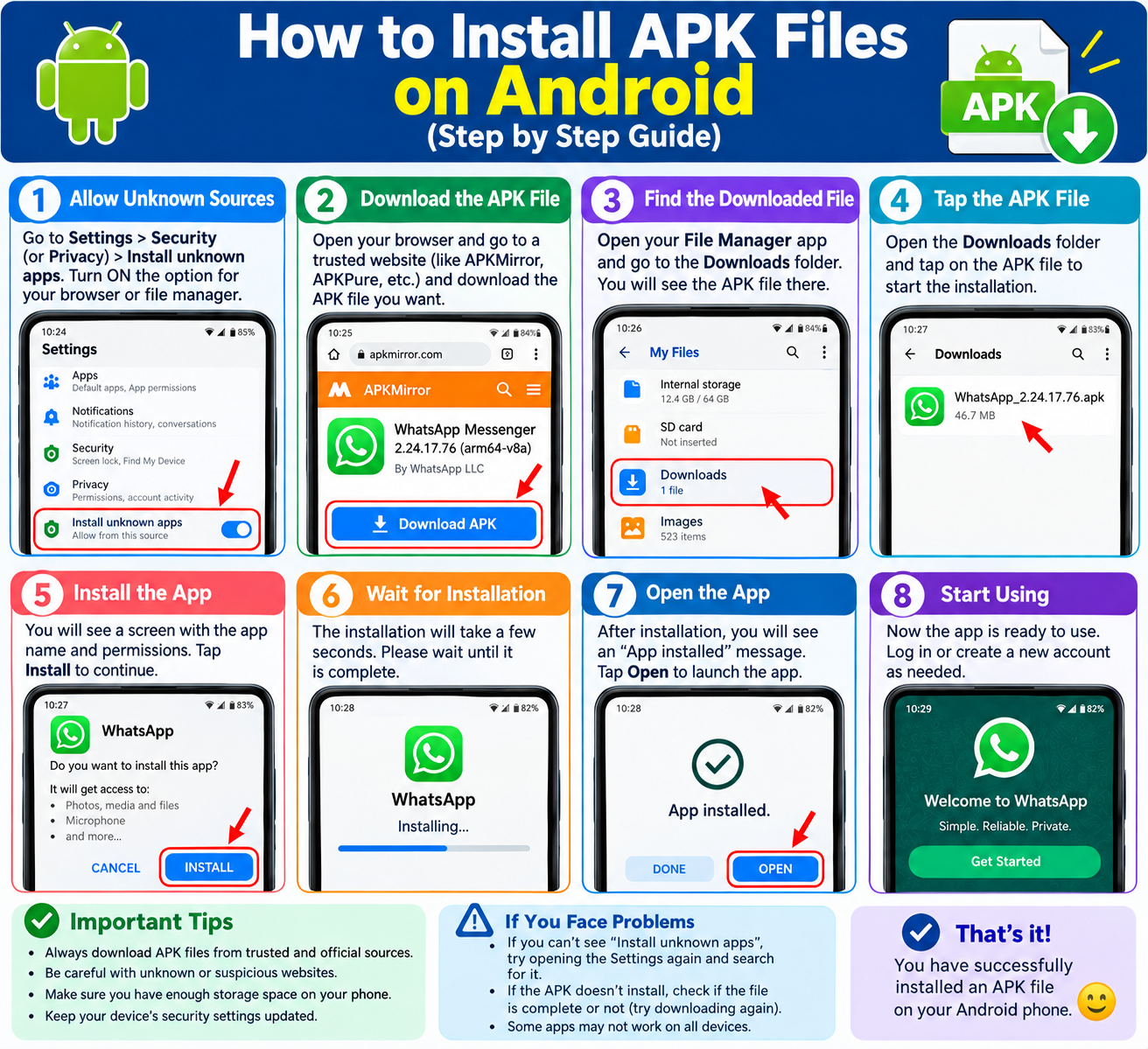
How to Install APK Files on Android
Installing an APK file on Android can be useful when you want to install an app that is not available through the Google Play Store. If you download APK files from websites such as APK Rolo, the installation process is straightforward, but you should always make sure the APK comes from a trustworthy source.
In this guide, we will explain how to install APK files on Android, how to allow APK installations, how to find downloaded APK files, and what to check before installing an app.
What Is an APK File?
APK stands for Android Package Kit. It is the file format Android uses to distribute and install applications. When you download an Android application outside the Google Play Store, the file will commonly have an .apk extension.
Websites such as APK Rolo may provide APK files that users can download and install manually. Instead of installing an application directly through the Play Store, you download the APK file and then open it on your Android device.
How to Install APK Files on Android
The exact steps can vary slightly depending on your Android version and phone manufacturer, but the general process is similar.
Step 1: Download the APK File
First, download the APK file you want to install. If you are using APK Rolo, find the application you want and download its APK file to your Android phone.
Before downloading, check the application name, version, and file information. Avoid downloading APK files from unknown or suspicious websites.
Step 2: Allow Installation From the Source
Modern Android versions generally restrict APK installations from unknown sources by default.
If Android displays a message saying that you are not allowed to install the application, open the relevant settings and allow the browser or file manager you are using to install unknown apps.
On many Android devices, you can find this option under:
Settings → Apps → Special app access → Install unknown apps
Select the browser or file manager you used to download the APK and enable the option to allow installations from that source.
The exact menu can be different on Samsung, Xiaomi, Google Pixel, OnePlus, and other Android phones.
Step 3: Find the Downloaded APK
After downloading an APK from APK Rolo or another source, open your phone’s Files, File Manager, or Downloads application.
Look for the APK file in your Downloads folder. APK files normally end with:
.apk
For example:
example-app.apk
Tap the APK file to begin the installation process.
Step 4: Install the APK
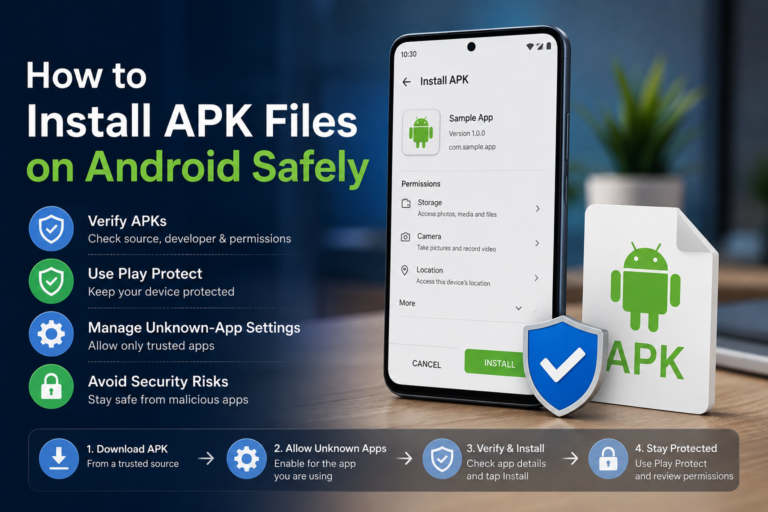
Android will display an installation screen. Review the application information and select Install if you want to continue.
The installation may take a few seconds. Once it is complete, you can select Open to launch the application or Done to close the installer.
Step 5: Open the Installed App
After installation, the application should appear in your Android app drawer.
You can now open it normally, just like an application installed from the Google Play Store.
How to Install APK Files on Samsung Phones
Samsung devices use their own version of Android, so some menu names may differ.
If you download an APK from APK Rolo using Samsung Internet or another browser, Android may ask you to allow that browser to install unknown applications.
Go to the appropriate security or app settings, allow installation from the browser when necessary, and then return to the downloaded APK file.
Tap the APK and follow the installation instructions shown on the screen.
Remember to disable permission for unknown app installations afterward if you do not regularly install APK files manually.
How to Install APK Files on Android 10, 11, 12, 13, 14, 15, or Newer Versions
The process for installing APK files is broadly similar across recent Android versions.
However, Android has increasingly emphasized security and may show warnings when an application is installed outside the Play Store.
If you are installing an APK from APK Rolo, make sure that:
- The APK is compatible with your Android version.
- You downloaded the correct application.
- The file came from a source you trust.
- Android does not identify the application as harmful.
- You understand what permissions the application requests.
Android may also scan applications using built-in security features. Do not ignore a serious security warning simply because you want to install an APK.
Why Would You Install an APK?
There are several legitimate reasons someone might manually install an APK.
An application may not be available in your region, you may need an older compatible version, or the developer may distribute the application directly rather than through Google Play.
For users who download Android applications from APK Rolo, manual installation provides another way to install compatible APK packages on their devices.
However, manual installation also means you need to pay closer attention to the source and file you are installing.
Is It Safe to Install APK Files?
An APK is simply an Android application package, but an APK file can contain software that may be unsafe. The important issue is where the file came from and whether it has been modified.
If you use APK Rolo or another APK website, consider the following safety practices:
- Download applications only from sources you trust.
- Avoid modified APKs when you do not know what changes were made.
- Check the application name and version before installation.
- Pay attention to Android security warnings.
- Avoid APK files that request unnecessary permissions.
- Keep Android and your security software updated.
- Delete APK files you no longer need.
- Do not provide sensitive information to an application you do not trust.
If an APK appears suspicious, it is safer not to install it.
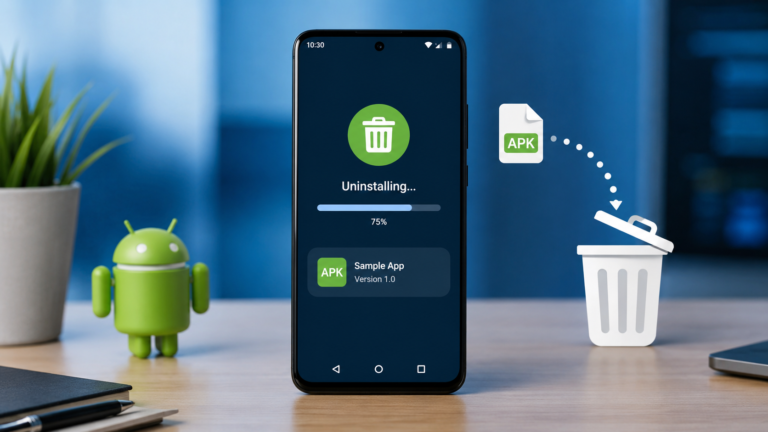
How to Uninstall an APK-Installed App
An application installed from an APK can normally be removed in the same way as other Android applications.
Open:
Settings → Apps → See all apps
Select the application and tap Uninstall.
You can also uninstall many applications by holding their icon and selecting Uninstall.
Removing the application does not necessarily remove every file it created, so you can check your Downloads or File Manager folders afterward if you want to remove the original APK file as well.
Common APK Installation Problems
Sometimes an APK does not install successfully. Here are some common reasons.
APK Is Not Compatible
The application may require a different Android version or processor architecture. Check the application’s requirements before downloading it.
Installation Is Blocked
Android may block the installation because your browser or file manager does not have permission to install unknown applications.
Check the Install unknown apps setting for the application you used to open the APK.
APK File Is Corrupted
If the download was interrupted or the file is damaged, Android may be unable to install it. Download the file again from a trusted source.
Not Enough Storage
Your phone needs enough free storage to download and install applications. Remove unnecessary files or applications if your device is running low on storage.
Existing App Conflict
An APK may conflict with an application already installed on your phone, particularly if the package signature or version is different. In some situations, you may need to remove the existing version before installing another version, although doing so can remove the app’s local data.
Frequently Asked Questions About APK Rolo and APK Installation
What is APK Rolo?
APK Rolo is the website name you may use when looking for Android APK-related content. When downloading any APK, users should verify the source and consider Android’s security warnings before installing the file.
How do I install an APK on Android?
Download the APK, open it from your Downloads or file manager, allow the relevant app to install unknown applications when Android requests permission, and then select Install.
Can I install an APK without Google Play?
Yes. Android allows users to manually install APK packages, provided the device permits installation from the source and the APK is compatible with the device.
Where are APK files stored after downloading?
Most browsers save downloaded APK files in the Downloads folder. You can usually find them using the Files or File Manager application.
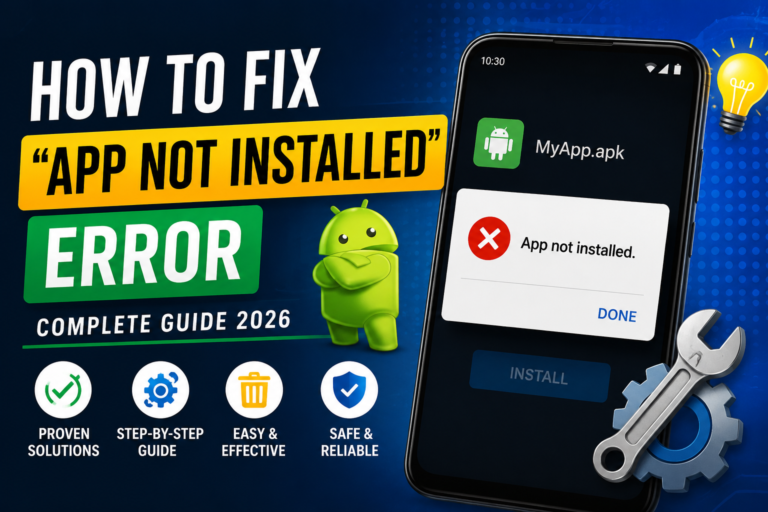
Why won’t my APK install?
An APK may fail to install because of incompatibility, a damaged download, insufficient storage, installation restrictions, or a conflict with an existing application.
Final Thoughts
Learning how to install APK files on Android is relatively simple. Download the APK, make sure your Android device allows installation from the source, open the file through your Downloads or File Manager application, and follow the installation instructions.
If you use APK Rolo to find APK files, always pay attention to the application’s version, compatibility, source, permissions, and Android security warnings. Taking these precautions can help you avoid installing unwanted or potentially harmful software.
With the correct APK and a compatible Android device, you can complete the installation in just a few steps.