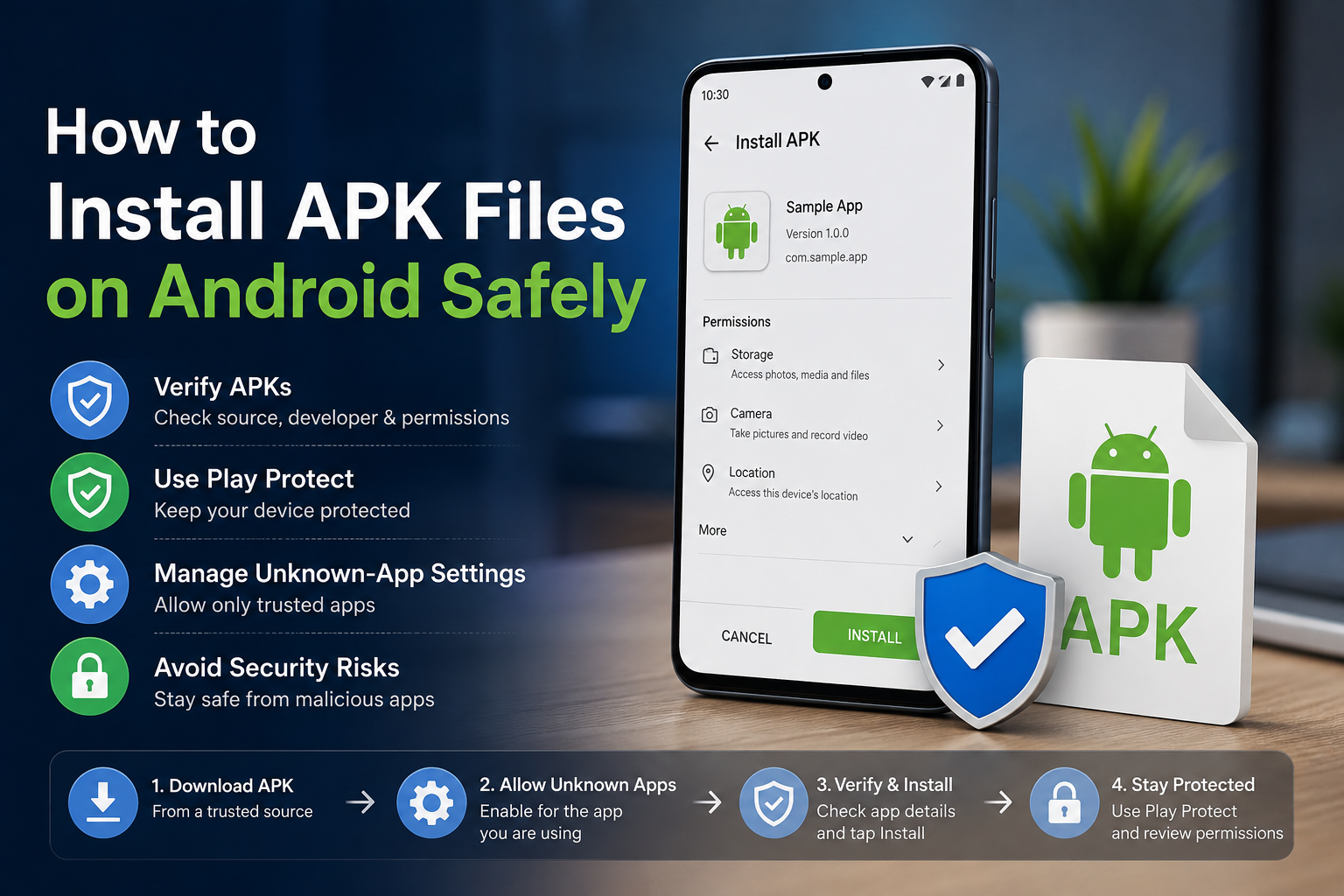
How to Install APK Files on Android Safely
Installing an APK can be useful when an app isn’t available through Google Play, when you need an older version, or when a developer provides the app directly. But an APK is also a direct software package, so downloading one from an unreliable source can expose your phone and personal data to security risks.
The safest approach is simple: download the APK from a trustworthy source, verify that it matches your device, keep Google Play Protect enabled, and only grant permissions that make sense for the app. Google recommends Google Play as the primary source, while Android also supports installing apps from other sources.
This guide explains how to install APK files on Android safely, what to check before installation, how to allow APK installation, and what to do if Android refuses to install the file.
What Is an APK File?
APK stands for Android Package Kit. It is the package format Android uses to install applications on Android devices. An APK contains the app’s code, resources, and other files needed for the application to run.
When you download an app directly as an .apk file rather than installing it through Google Play, you’re performing what’s commonly called sideloading.
Sideloading isn’t automatically unsafe. The main risk is the source of the APK and whether the file has been modified or contains harmful software.
Is It Safe to Install APK Files?
Yes, APK installation can be safe when you use a trustworthy source and take appropriate security precautions.
However, Google warns that apps downloaded from unknown sources can put your device and personal information at risk.
Before installing an APK, check:
- Where the APK came from
- Whether the publisher is trustworthy
- Whether the APK matches your Android version
- Whether the app requires reasonable permissions
- Whether Google Play Protect is enabled
- Whether the APK has been modified or repackaged
- Whether the file is actually an APK and not a suspicious executable or archive
If an APK promises a paid app for free, unlimited premium features, impossible performance improvements, or asks for unusual permissions, treat it as a warning sign.
How to Install an APK File on Android Safely
The exact menus can vary between Android phones because manufacturers customize their software. The general process is similar across modern Android devices.
1. Download the APK From a Trusted Source
Start by obtaining the APK from a source you trust.
Google recommends Google Play for obtaining Android apps, but Android also allows apps to come from other sources.
If the developer has an official website, that’s generally a better place to look for a legitimate direct-download APK than an unknown file-sharing page.
Avoid APK files that:
- Come from suspicious pop-ups
- Are distributed through unexpected messages
- Promise hacked or cracked versions
- Ask you to disable multiple security features
- Have a misleading app name
- Come from a website you cannot identify or trust
Tip: If the app is already available through Google Play, compare the developer name, app name, version, and other identifying information before installing an APK from elsewhere.
2. Check the APK Before Opening It
Don’t immediately tap Install just because the filename looks familiar.
Check the following:
App name: Does it match the application you intended to download?
Developer: Is the developer known and trustworthy?
Version: Is it appropriate for your device?
File type: Make sure you’re dealing with an actual APK. A normal Android installation package generally ends in .apk.
Source: Can you identify where the file came from?
If the download source looks suspicious, don’t install the file.
3. Keep Google Play Protect Enabled
Google Play Protect is Android’s built-in protection system for potentially harmful applications. It checks apps when they’re installed and also performs periodic scans of apps on the device, including apps installed from sources outside Google Play. It can warn about harmful apps and may disable or remove them.
To check Play Protect:
- Open Google Play Store.
- Tap your profile picture.
- Select Play Protect.
- Open Settings.
- Make sure Scan apps with Play Protect is enabled.
Google recommends keeping Play Protect turned on for security.
Do not disable Play Protect simply because an APK website tells you to. If Android or Play Protect warns you about a file, stop and investigate the warning first.
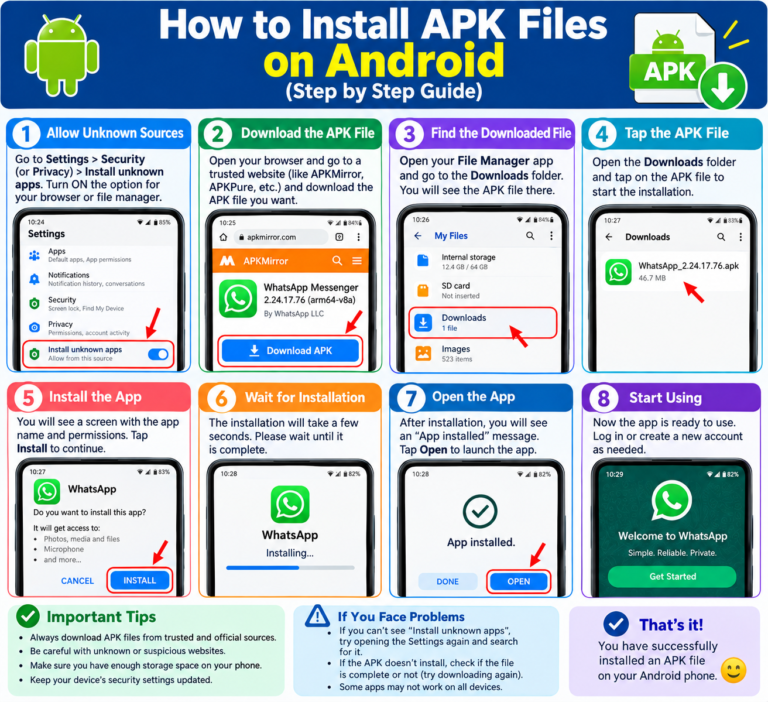
4. Allow Installation From the App You Used to Download the APK
Android can restrict installations from sources other than Google Play.
For example, if you downloaded an APK using Chrome, Android may require you to allow Chrome to install unknown apps. If you opened the APK from a file manager, the permission may instead apply to that file manager.
On supported Android versions, the setting is generally found under a path similar to:
Settings → Apps → Special app access → Install unknown apps
Then:
- Select the app you used to open the APK.
- Enable Allow from this source.
- Return to the APK file.
- Tap the APK again.
- Review the installation screen.
- Select Install if everything looks correct.
The exact wording and location can differ by phone manufacturer and Android version.
5. Install the APK
After Android accepts the installation request, you’ll see the app installation screen.
Review the application information before continuing.
If the app is from a source you trust and the information looks correct, tap Install.
Wait for Android to finish installing the application.
If Android displays a security warning, don’t automatically bypass it. First determine why the warning appeared.
6. Turn Off “Allow From This Source” When You’re Finished
You don’t normally need to keep installation permission enabled for an app after installing the APK.
For better security, return to the same setting and disable Allow from this source when you’re finished.
This reduces the chance of accidentally installing another unwanted APK later.
How to Verify an APK Is Legitimate
There is no single check that can guarantee an APK is completely safe. Use several checks together.
Check the Developer
A legitimate app should have a recognizable developer or publisher.
If the APK claims to be from a major company but comes from an unrelated website or developer, be cautious.
Compare the App With the Official Version
If the application is available on Google Play, compare:
- App name
- Developer name
- Version
- App description
- Icon
- Package identity when available
Differences don’t automatically mean an APK is malicious, but unexplained differences deserve investigation.
Check the Digital Signature
Android APKs must be digitally signed before they can be installed. Android uses app signing to establish the identity of an application and help ensure that updates come from the same signing key.
For advanced users, APK signing information can be checked with Android’s apksigner tool. Google provides apksigner as part of the Android SDK Build Tools.
For ordinary users, however, a trustworthy download source, Play Protect, and careful permission review are usually more practical than manually examining signing certificates.
Scan the File
You can also use a reputable malware-scanning service or security product to check a suspicious APK before installing it.
No scanner should be treated as an absolute guarantee. A clean scan is one useful signal, not proof that an app is trustworthy.
How to Check APK Permissions
Permissions determine what an app can access or do on your device.
For example, a messaging application may reasonably need access to contacts or notifications. A simple flashlight application requesting extensive access to personal information should make you question why those permissions are necessary.
Google warns that harmful apps can use misleading requests to obtain access to sensitive information or persuade users to change risky device settings.
After installing an APK:
- Open Settings.
- Go to Apps.
- Select the installed application.
- Open Permissions.
- Review what the app can access.
- Remove permissions that aren’t necessary when Android allows you to do so.
[Internal Link: How to Check and Manage App Permissions on Android]
APK Installation vs Google Play Installation
| Feature | Google Play | APK Sideloading |
|---|---|---|
| Installation method | App Store | Direct APK file |
| Security checks | Built into Google Play and Play Protect | Mainly depends on source and device protection |
| App discovery | Easy | Requires finding the APK |
| Updates | Usually automatic through Play | Often requires manual updating |
| Risk from unknown sources | Lower when using trusted apps | Higher if the APK source is unreliable |
| Useful for unavailable apps | Sometimes limited | Yes |
| Useful for older versions | Usually limited | Often possible |
Google specifically recommends Google Play as the preferred source for apps, while acknowledging that Android devices can also install apps from other sources.
Why Android Says “Install Unknown Apps”
Android uses this protection to prevent applications from silently installing software from sources you haven’t authorized.
When you download an APK outside Google Play, Android may ask you to permit the specific app that is opening the APK to install it.
This permission is separate from simply downloading a file.
For example, downloading an APK with Chrome doesn’t necessarily mean every app on your phone can install APK files. You may need to authorize Chrome specifically.
Common APK Installation Problems
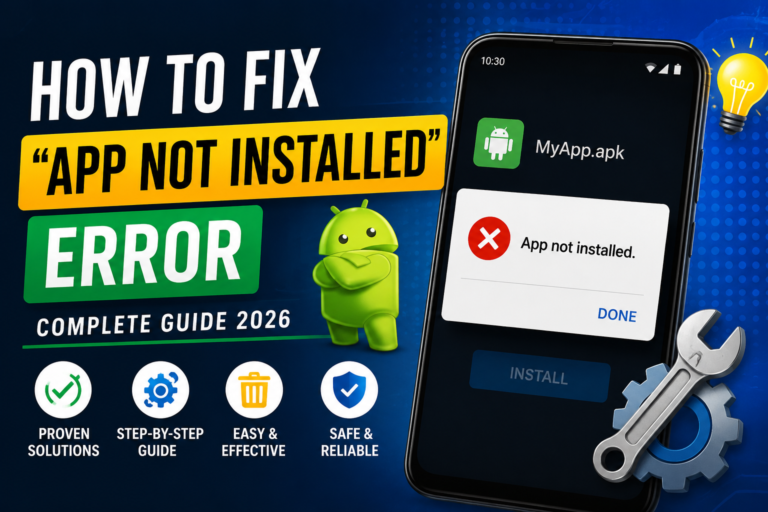
“App Not Installed”
This message can have several causes.
Possible reasons include:
- The APK is corrupted.
- The app isn’t compatible with your Android version.
- Another version of the app is already installed.
- The APK package conflicts with an existing installation.
- The device doesn’t support the APK’s required architecture.
- The APK isn’t a complete package for your device.
- The app has been blocked by a security policy.
Try downloading the APK again from a trustworthy source and confirm that it is intended for your Android device.
“For Your Security, Your Phone Currently Isn’t Allowed to Install Unknown Apps”
This usually means the application you’re using to open the APK isn’t authorized to install apps from that source.
Go to your phone’s Install unknown apps settings and check whether the app you’re using to open the APK has permission.
The exact menu can differ by manufacturer.
Play Protect Blocks the APK
If Play Protect warns or blocks an APK, don’t immediately disable Play Protect.
Google says Play Protect can prevent potentially harmful applications from being installed and can warn, disable, or remove harmful applications.
First verify the APK’s source and developer.
If you believe the warning is incorrect, investigate the application through its official publisher rather than simply turning off security protections.
The APK Installs but the App Won’t Open
Installation doesn’t guarantee compatibility.
An app may install but fail to work correctly because it depends on:
- A newer Android version
- Specific hardware
- Google Play services
- Required device features
- A particular CPU architecture
- Services or components that aren’t available on your phone
If this happens, check the developer’s compatibility information and look for an official version designed for your device.
Can You Install an APK Without Google Play?
Yes. Android supports installing applications from sources outside Google Play, although the process and restrictions depend on the Android version, device manufacturer, and security settings.
However, installing outside Google Play comes with additional responsibility.
You should verify the source, keep security protections enabled, and avoid unnecessary permissions.
Some Android security configurations can also restrict or block installations from unknown sources. For example, Google’s Advanced Protection includes stronger controls against installations from unknown sources.
Can You Install an APK on Any Android Phone?
Not necessarily.
An APK can require a particular Android version, hardware feature, CPU architecture, or other system component.
Even if Android allows the installation, the application may not function correctly afterward.
Before installing, check whether the APK supports your:
- Android version
- Device model
- CPU architecture when specified
- Required Android features
- Google services or other dependencies
APK vs AAB: What’s the Difference?
An APK is an installable Android application package.
An Android App Bundle (AAB) is primarily a publishing format. It isn’t normally installed directly on an Android device in the same way as an APK. Google Play can use an app bundle to generate optimized APKs for individual devices.
For someone downloading an application for direct installation, the file they usually need is an APK or another supported installation package.
Common Mistakes to Avoid When Installing APKs
Downloading From Random Websites
A website offering an APK doesn’t automatically mean the APK is safe.
Look for a trustworthy publisher and a clear download source.
Disabling Play Protect
Turning off security protection just to install an unknown application removes an important safety layer.
Keep Play Protect enabled whenever possible.
Installing Modified or Cracked APKs
Modified APKs may have functionality added or changed by someone other than the original developer.
That can make it difficult to know what the application actually does.
Ignoring Permissions
Don’t approve permissions without considering whether they’re appropriate for the app.
An unusual permission request can be an important warning sign.
Keeping Unknown-Source Installation Enabled
Once you’ve finished installing an APK, disable the installation permission for the source app if you don’t need it anymore.
Installing an APK Without Checking Compatibility
A file can be genuine but still incompatible with your phone.
Check the Android version and device requirements first.
A Simple Safety Checklist
Before installing an APK, ask yourself:
- Is this the APK I actually intended to download?
- Do I trust the source?
- Can I identify the developer?
- Does the APK match my Android version?
- Is Google Play Protect enabled?
- Are the requested permissions reasonable?
- Does the application have an official website or trusted distribution channel?
- Am I being pressured to disable security features?
- Is the app offering something suspiciously valuable for free?
If several answers raise concerns, don’t install the APK.
Frequently Asked Questions
Is installing an APK safe?
It can be safe when the APK comes from a trustworthy source and you verify the application before installing it. APKs from unknown or suspicious sources can put your device and personal information at risk.
Should I turn off Google Play Protect to install an APK?
No. You generally shouldn’t disable Play Protect just to install an APK. Play Protect checks applications for potentially harmful behavior and can warn about or block suspicious apps.
Why can’t I install an APK on Android?
Common reasons include an incompatible Android version, corrupted APK, conflicting installed version, unsupported device architecture, security restrictions, or an APK that isn’t suitable for your device.
Where is “Install Unknown Apps” on Android?
On many modern Android phones, it can be found under Settings → Apps → Special app access → Install unknown apps. The exact location and wording vary by manufacturer and Android version.
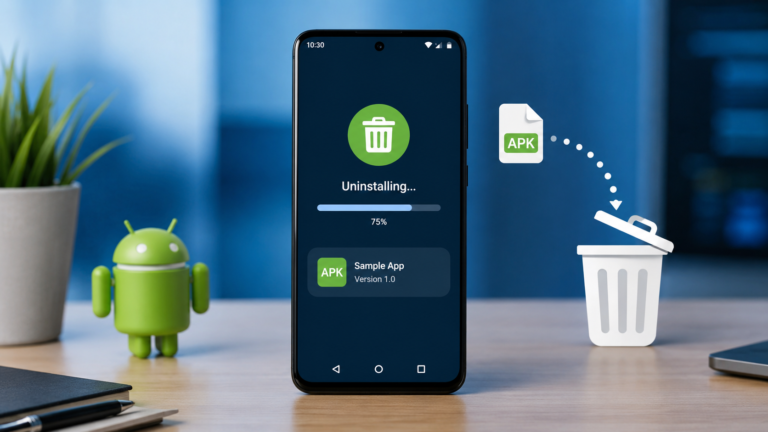
Can I delete the APK after installing the app?
Yes. Once the application has been successfully installed, the original APK file isn’t normally required for the installed app to run. Keeping it is optional.
Does Google Play Protect scan APK files installed outside Google Play?
Yes. Google states that Play Protect checks apps installed from sources outside Google Play as well as apps installed through Google Play.
Can an APK be genuine but still unsafe?
Yes. A file can appear to be a legitimate application while coming from an untrusted source or being modified. That’s why source verification, digital signatures where appropriate, Play Protect, and permission checks are useful layers of protection.
Final Thoughts
Installing APK files on Android doesn’t have to be complicated. The important part is how you obtain and verify the APK before installing it.
For the lowest-risk experience, use Google Play whenever the application is available there. If you need to sideload an APK, download it from a trustworthy source, confirm compatibility, keep Google Play Protect enabled, review permissions, and disable installation from that source when you’re finished.
An APK is simply an Android application package. The real security question is whether the file and its source can be trusted.Installing an APK can be useful when an app isn’t available through Google Play, when you need an older version, or when a developer provides the app directly. But an APK is also a direct software package, so downloading one from an unreliable source can expose your phone and personal data to security risks.
The safest approach is simple: download the APK from a trustworthy source, verify that it matches your device, keep Google Play Protect enabled, and only grant permissions that make sense for the app. Google recommends Google Play as the primary source, while Android also supports installing apps from other sources.
This guide explains how to install APK files on Android safely, what to check before installation, how to allow APK installation, and what to do if Android refuses to install the file.
What Is an APK File?
APK stands for Android Package Kit. It is the package format Android uses to install applications on Android devices. An APK contains the app’s code, resources, and other files needed for the application to run.
When you download an app directly as an .apk file rather than installing it through Google Play, you’re performing what’s commonly called sideloading.
Sideloading isn’t automatically unsafe. The main risk is the source of the APK and whether the file has been modified or contains harmful software.
Is It Safe to Install APK Files?
Yes, APK installation can be safe when you use a trustworthy source and take appropriate security precautions.
However, Google warns that apps downloaded from unknown sources can put your device and personal information at risk.
Before installing an APK, check:
- Where the APK came from
- Whether the publisher is trustworthy
- Whether the APK matches your Android version
- Whether the app requires reasonable permissions
- Whether Google Play Protect is enabled
- Whether the APK has been modified or repackaged
- Whether the file is actually an APK and not a suspicious executable or archive
If an APK promises a paid app for free, unlimited premium features, impossible performance improvements, or asks for unusual permissions, treat it as a warning sign.
How to Install an APK File on Android Safely
The exact menus can vary between Android phones because manufacturers customize their software. The general process is similar across modern Android devices.
1. Download the APK From a Trusted Source
Start by obtaining the APK from a source you trust.
Google recommends Google Play for obtaining Android apps, but Android also allows apps to come from other sources.
If the developer has an official website, that’s generally a better place to look for a legitimate direct-download APK than an unknown file-sharing page.
Avoid APK files that:
- Come from suspicious pop-ups
- Are distributed through unexpected messages
- Promise hacked or cracked versions
- Ask you to disable multiple security features
- Have a misleading app name
- Come from a website you cannot identify or trust
Tip: If the app is already available through Google Play, compare the developer name, app name, version, and other identifying information before installing an APK from elsewhere.
2. Check the APK Before Opening It
Don’t immediately tap Install just because the filename looks familiar.
Check the following:
App name: Does it match the application you intended to download?
Developer: Is the developer known and trustworthy?
Version: Is it appropriate for your device?
File type: Make sure you’re dealing with an actual APK. A normal Android installation package generally ends in .apk.
Source: Can you identify where the file came from?
If the download source looks suspicious, don’t install the file.
3. Keep Google Play Protect Enabled
Google Play Protect is Android’s built-in protection system for potentially harmful applications. It checks apps when they’re installed and also performs periodic scans of apps on the device, including apps installed from sources outside Google Play. It can warn about harmful apps and may disable or remove them.
To check Play Protect:
- Open Google Play Store.
- Tap your profile picture.
- Select Play Protect.
- Open Settings.
- Make sure Scan apps with Play Protect is enabled.
Google recommends keeping Play Protect turned on for security.
Do not disable Play Protect simply because an APK website tells you to. If Android or Play Protect warns you about a file, stop and investigate the warning first.
4. Allow Installation From the App You Used to Download the APK
Android can restrict installations from sources other than Google Play.
For example, if you downloaded an APK using Chrome, Android may require you to allow Chrome to install unknown apps. If you opened the APK from a file manager, the permission may instead apply to that file manager.
On supported Android versions, the setting is generally found under a path similar to:
Settings → Apps → Special app access → Install unknown apps
Then:
- Select the app you used to open the APK.
- Enable Allow from this source.
- Return to the APK file.
- Tap the APK again.
- Review the installation screen.
- Select Install if everything looks correct.
The exact wording and location can differ by phone manufacturer and Android version.
5. Install the APK
After Android accepts the installation request, you’ll see the app installation screen.
Review the application information before continuing.
If the app is from a source you trust and the information looks correct, tap Install.
Wait for Android to finish installing the application.
If Android displays a security warning, don’t automatically bypass it. First determine why the warning appeared.
6. Turn Off “Allow From This Source” When You’re Finished
You don’t normally need to keep installation permission enabled for an app after installing the APK.
For better security, return to the same setting and disable Allow from this source when you’re finished.
This reduces the chance of accidentally installing another unwanted APK later.
How to Verify an APK Is Legitimate
There is no single check that can guarantee an APK is completely safe. Use several checks together.
Check the Developer
A legitimate app should have a recognizable developer or publisher.
If the APK claims to be from a major company but comes from an unrelated website or developer, be cautious.
Compare the App With the Official Version
If the application is available on Google Play, compare:
- App name
- Developer name
- Version
- App description
- Icon
- Package identity when available
Differences don’t automatically mean an APK is malicious, but unexplained differences deserve investigation.
Check the Digital Signature
Android APKs must be digitally signed before they can be installed. Android uses app signing to establish the identity of an application and help ensure that updates come from the same signing key.
For advanced users, APK signing information can be checked with Android’s apksigner tool. Google provides apksigner as part of the Android SDK Build Tools.
For ordinary users, however, a trustworthy download source, Play Protect, and careful permission review are usually more practical than manually examining signing certificates.
Scan the File
You can also use a reputable malware-scanning service or security product to check a suspicious APK before installing it.
No scanner should be treated as an absolute guarantee. A clean scan is one useful signal, not proof that an app is trustworthy.
How to Check APK Permissions
Permissions determine what an app can access or do on your device.
For example, a messaging application may reasonably need access to contacts or notifications. A simple flashlight application requesting extensive access to personal information should make you question why those permissions are necessary.
Google warns that harmful apps can use misleading requests to obtain access to sensitive information or persuade users to change risky device settings.
After installing an APK:
- Open Settings.
- Go to Apps.
- Select the installed application.
- Open Permissions.
- Review what the app can access.
- Remove permissions that aren’t necessary when Android allows you to do so.
[Internal Link: How to Check and Manage App Permissions on Android]
APK Installation vs Google Play Installation
| Feature | Google Play | APK Sideloading |
|---|---|---|
| Installation method | App Store | Direct APK file |
| Security checks | Built into Google Play and Play Protect | Mainly depends on source and device protection |
| App discovery | Easy | Requires finding the APK |
| Updates | Usually automatic through Play | Often requires manual updating |
| Risk from unknown sources | Lower when using trusted apps | Higher if the APK source is unreliable |
| Useful for unavailable apps | Sometimes limited | Yes |
| Useful for older versions | Usually limited | Often possible |
Google specifically recommends Google Play as the preferred source for apps, while acknowledging that Android devices can also install apps from other sources.
Why Android Says “Install Unknown Apps”
Android uses this protection to prevent applications from silently installing software from sources you haven’t authorized.
When you download an APK outside Google Play, Android may ask you to permit the specific app that is opening the APK to install it.
This permission is separate from simply downloading a file.
For example, downloading an APK with Chrome doesn’t necessarily mean every app on your phone can install APK files. You may need to authorize Chrome specifically.
Common APK Installation Problems
“App Not Installed”
This message can have several causes.
Possible reasons include:
- The APK is corrupted.
- The app isn’t compatible with your Android version.
- Another version of the app is already installed.
- The APK package conflicts with an existing installation.
- The device doesn’t support the APK’s required architecture.
- The APK isn’t a complete package for your device.
- The app has been blocked by a security policy.
Try downloading the APK again from a trustworthy source and confirm that it is intended for your Android device.
“For Your Security, Your Phone Currently Isn’t Allowed to Install Unknown Apps”
This usually means the application you’re using to open the APK isn’t authorized to install apps from that source.
Go to your phone’s Install unknown apps settings and check whether the app you’re using to open the APK has permission.
The exact menu can differ by manufacturer.
Play Protect Blocks the APK
If Play Protect warns or blocks an APK, don’t immediately disable Play Protect.
Google says Play Protect can prevent potentially harmful applications from being installed and can warn, disable, or remove harmful applications.
First verify the APK’s source and developer.
If you believe the warning is incorrect, investigate the application through its official publisher rather than simply turning off security protections.
The APK Installs but the App Won’t Open
Installation doesn’t guarantee compatibility.
An app may install but fail to work correctly because it depends on:
- A newer Android version
- Specific hardware
- Google Play services
- Required device features
- A particular CPU architecture
- Services or components that aren’t available on your phone
If this happens, check the developer’s compatibility information and look for an official version designed for your device.
Can You Install an APK Without Google Play?
Yes. Android supports installing applications from sources outside Google Play, although the process and restrictions depend on the Android version, device manufacturer, and security settings.
However, installing outside Google Play comes with additional responsibility.
You should verify the source, keep security protections enabled, and avoid unnecessary permissions.
Some Android security configurations can also restrict or block installations from unknown sources. For example, Google’s Advanced Protection includes stronger controls against installations from unknown sources.
Can You Install an APK on Any Android Phone?
Not necessarily.
An APK can require a particular Android version, hardware feature, CPU architecture, or other system component.
Even if Android allows the installation, the application may not function correctly afterward.
Before installing, check whether the APK supports your:
- Android version
- Device model
- CPU architecture when specified
- Required Android features
- Google services or other dependencies
APK vs AAB: What’s the Difference?
An APK is an installable Android application package.
An Android App Bundle (AAB) is primarily a publishing format. It isn’t normally installed directly on an Android device in the same way as an APK. Google Play can use an app bundle to generate optimized APKs for individual devices.
For someone downloading an application for direct installation, the file they usually need is an APK or another supported installation package.
Common Mistakes to Avoid When Installing APKs
Downloading From Random Websites
A website offering an APK doesn’t automatically mean the APK is safe.
Look for a trustworthy publisher and a clear download source.
Disabling Play Protect
Turning off security protection just to install an unknown application removes an important safety layer.
Keep Play Protect enabled whenever possible.
Installing Modified or Cracked APKs
Modified APKs may have functionality added or changed by someone other than the original developer.
That can make it difficult to know what the application actually does.
Ignoring Permissions
Don’t approve permissions without considering whether they’re appropriate for the app.
An unusual permission request can be an important warning sign.
Keeping Unknown-Source Installation Enabled
Once you’ve finished installing an APK, disable the installation permission for the source app if you don’t need it anymore.
Installing an APK Without Checking Compatibility
A file can be genuine but still incompatible with your phone.
Check the Android version and device requirements first.
A Simple Safety Checklist
Before installing an APK, ask yourself:
- Is this the APK I actually intended to download?
- Do I trust the source?
- Can I identify the developer?
- Does the APK match my Android version?
- Is Google Play Protect enabled?
- Are the requested permissions reasonable?
- Does the application have an official website or trusted distribution channel?
- Am I being pressured to disable security features?
- Is the app offering something suspiciously valuable for free?
If several answers raise concerns, don’t install the APK.
Frequently Asked Questions
Is installing an APK safe?
It can be safe when the APK comes from a trustworthy source and you verify the application before installing it. APKs from unknown or suspicious sources can put your device and personal information at risk.
Should I turn off Google Play Protect to install an APK?
No. You generally shouldn’t disable Play Protect just to install an APK. Play Protect checks applications for potentially harmful behavior and can warn about or block suspicious apps.
Why can’t I install an APK on Android?
Common reasons include an incompatible Android version, corrupted APK, conflicting installed version, unsupported device architecture, security restrictions, or an APK that isn’t suitable for your device.
Where is “Install Unknown Apps” on Android?
On many modern Android phones, it can be found under Settings → Apps → Special app access → Install unknown apps. The exact location and wording vary by manufacturer and Android version.
Can I delete the APK after installing the app?
Yes. Once the application has been successfully installed, the original APK file isn’t normally required for the installed app to run. Keeping it is optional.
Does Google Play Protect scan APK files installed outside Google Play?
Yes. Google states that Play Protect checks apps installed from sources outside Google Play as well as apps installed through Google Play.
Can an APK be genuine but still unsafe?
Yes. A file can appear to be a legitimate application while coming from an untrusted source or being modified. That’s why source verification, digital signatures where appropriate, Play Protect, and permission checks are useful layers of protection.
Final Thoughts
Installing APK files on Android doesn’t have to be complicated. The important part is how you obtain and verify the APK before installing it.
For the lowest-risk experience, use Google Play whenever the application is available there. If you need to sideload an APK, download it from a trustworthy source, confirm compatibility, keep Google Play Protect enabled, review permissions, and disable installation from that source when you’re finished.
An APK is simply an Android application package. The real security question is whether the file and its source can be trusted.